HMI and PLC Not Communicating: How to Find the Connection Problem
The panel is powered, but PLC values do not update. A practical sequence for checking cables, protocols, device addresses and data mapping on Ethernet and RS-485 links.
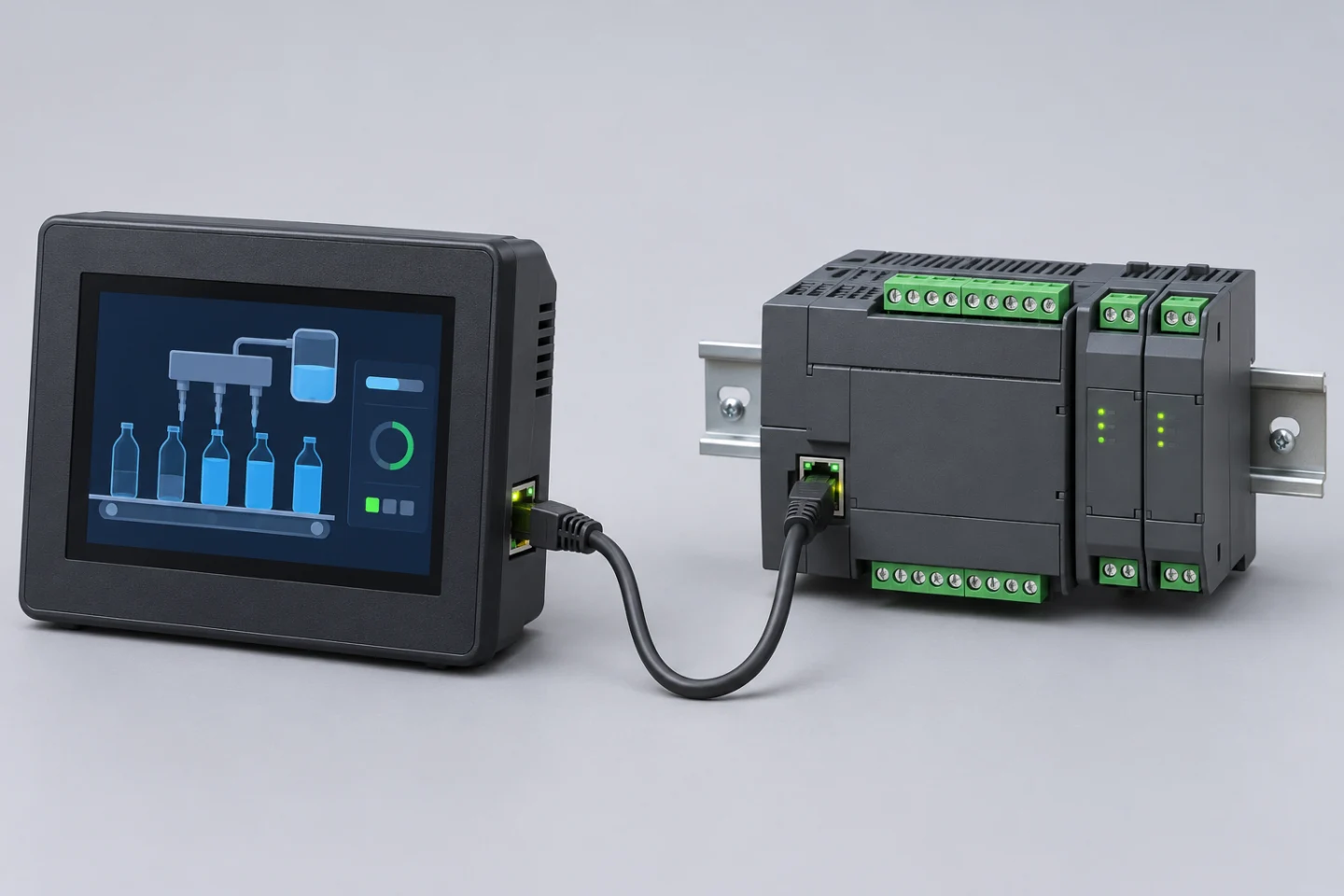
When an HMI cannot communicate with a PLC, identify the physical connection and protocol first. Then check the cable, device configuration and requested data addresses in that order. A powered display or an Ethernet link light does not prove that PLC data are being read correctly.
This is a brand-independent investigation sequence. Menus, ports and address formats differ between Samkoon, Siemens, Delta and other models. Diagrams are schematic; the generated cover shows an illustrative equipment pairing. Example IP addresses and serial settings are not ready-to-use machine settings.
1. Is all communication missing, or are only some values wrong?
Separate the symptoms before changing configuration:
- No PLC values update: investigate the common connection, protocol, target device and port settings.
- Some values work: inspect the affected address, memory area, permissions and data type.
- A number appears but is implausible: check scaling, signed/unsigned interpretation, 16/32-bit length and word order.
- The link fails intermittently: investigate connectors, electrical interference, network load and polling behaviour.
- PC simulation works but the panel does not: the PC and panel may use different paths, ports or loaded project versions.
Record the exact error text or code and when it appears. Display symbols are not universal across manufacturers.
2. A connector type is not a protocol
An RJ45-shaped socket is not proof of a standard Ethernet interface. Some devices use that connector shape for other purposes. RS-232, RS-422 and RS-485 are not interchangeable either.
Identify the complete device models, actual ports and manufacturer connection diagrams. Compare the HMI driver/protocol with the PLC’s supported option. Having Ethernet on both products does not make all Ethernet protocols compatible.
Cable changes and wiring intervention must follow the machine’s safe working and energy-isolation procedure and be performed by an authorised person. Do not bypass machine safety permissives for a communication test.
3. What should be checked on Ethernet?
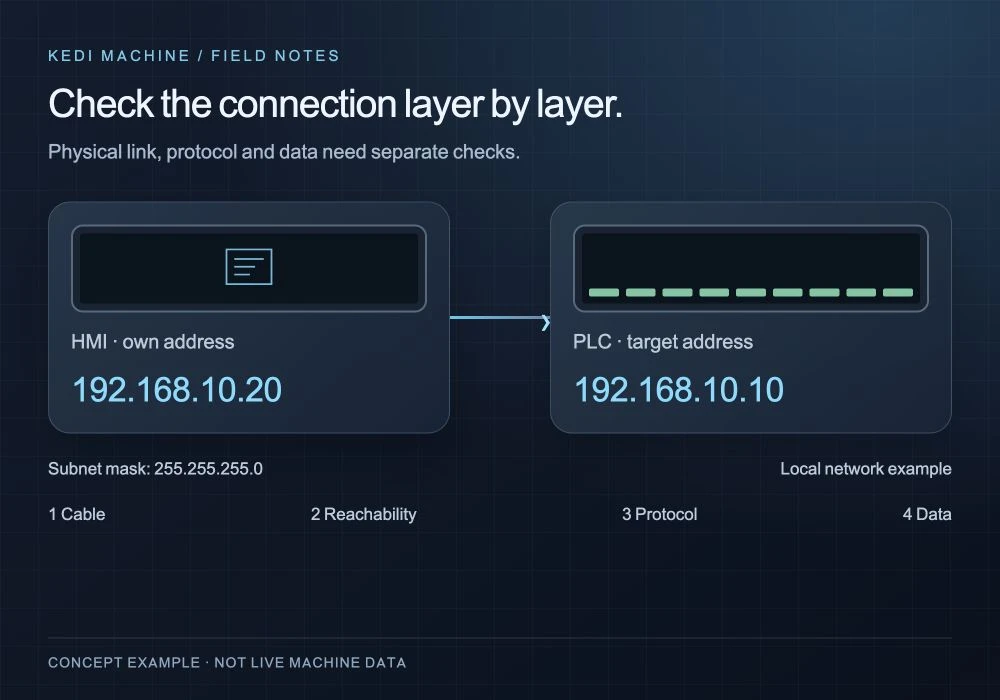
For a direct or simple switched connection on one local network, both devices need unique IP addresses and reachability according to their subnet masks. 192.168.10.20 and 192.168.10.10 with mask 255.255.255.0 illustrate two different addresses on one subnet. Routed or segmented plant networks need assessment against the network design.
The HMI’s own IP address and the target PLC IP address in its project are different fields. Compare project configuration with the settings actually active on each device, not only the copy saved on the engineering PC.
Link lights and a permitted ping test can provide reachability clues. A ping reply does not prove protocol or register access; no reply does not by itself prove hardware failure. Check the service, port and access configuration required by the selected protocol. Modbus TCP and a proprietary protocol do not share every setting.
4. Which settings matter on RS-485 and serial links?
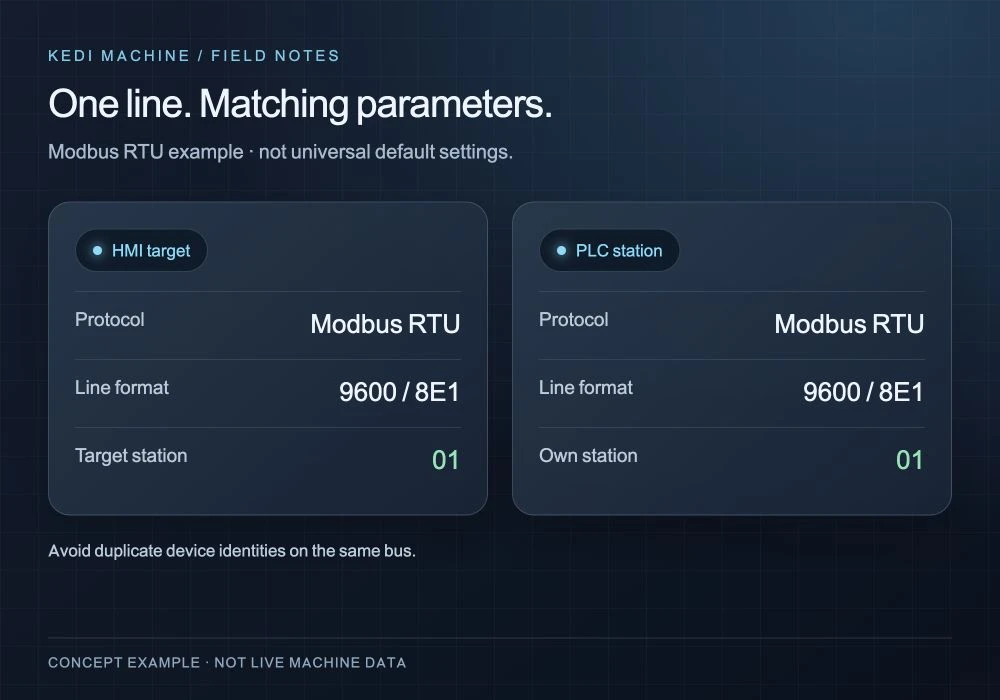
Verify the selected COM port, electrical interface and pin assignment against both manuals. Do not blindly match A/B, +/− or D0/D1 labels across brands: there is no universal pin number. Signal definitions, reference and shield connections must follow the manufacturers’ diagrams.
Baud rate, data bits, parity and stop bits must suit the protocol and supported device configuration. The diagram’s 9600 / 8E1 is an example, not a universal default.
In a Modbus RTU example, the HMI client/master targets the PLC server/slave address. The HMI’s target station and the PLC’s own station match; this does not mean assigning the same identity to every device. Avoid duplicate device identities on the same bus and use the correct client/master arrangement.
Check termination and biasing against the topology and any built-in hardware. Do not add resistors indiscriminately to every device. Record existing settings and wiring before making changes.
5. If data arrive but are wrong, check mapping
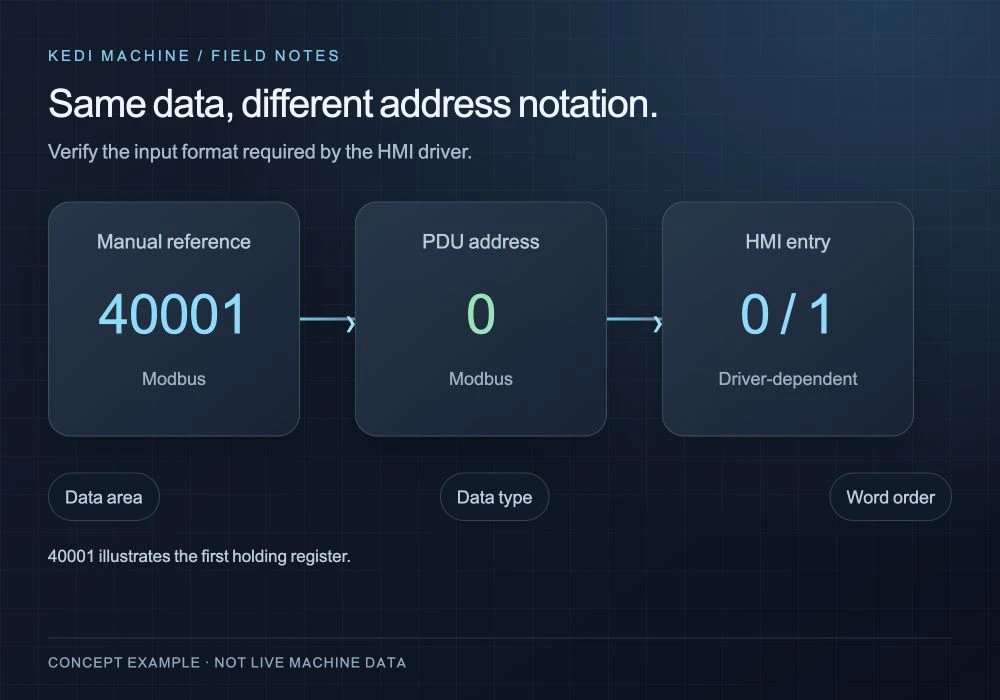
A visible number is not proof that the intended variable is being read. Review the HMI object’s connection, PLC address, memory area and data type together.
Modbus holding registers, input registers and coils are separate areas. The first holding register documented as 40001 may be entered as 0, 1 or the full reference, depending on the software. Modbus PDU addressing is zero-based; the driver’s user-facing notation must be checked separately. Do not shift every tag automatically.
A 32-bit value may occupy multiple 16-bit registers. Signedness, floating-point interpretation, scaling and word/register order can produce implausible readings when mismatched. Use the actual device map and driver documentation.
Start with one documented read-only status or counter value that does not start motion or production. Do not perform trial writes to machine-control addresses. If reading works but writing fails, check permissions and supported functions separately.
6. What should be recorded for intermittent faults?
Note whether failures coincide with a motor starting, a particular screen opening or a regular interval. Timing can help distinguish interference and power problems from polling load.
Repeated requests for unsupported addresses, unnecessarily fast polling and demands beyond device capacity can affect communication. Increasing timeouts indefinitely does not fix a wrong cable or protocol. Review diagnostics and access requirements with the authorised network contact; verify the required connection rather than disabling protections.
7. Checklist before the next test
- Record models, software versions and the error code.
- Compare the actual cable and ports with the diagrams.
- Verify the driver/protocol and client/server roles.
- Check IP, mask and target on Ethernet; line parameters and station on serial links.
- Validate one safe read-only value, its address and type.
- Change one thing at a time and record before-and-after behaviour.
- Back up the working configuration and project, and test how stale values are shown after communication loss.
Our filling machine HMI screen examples illustrate useful status and alarm information. Changes to drivers, mapping or communication logic belong in the scope of PLC and HMI programming.
Frequently asked questions
Must the HMI and PLC be the same brand?
No. Both models must support a common protocol and suitable physical interface. Brand names alone do not establish compatibility.
Why are there no values when the Ethernet light is on?
The light gives limited link information. The target IP, protocol service, access settings, address or data type may still be wrong.
I can download a PLC program. Why does the HMI not connect?
Programming access can use a different port, protocol or route from the HMI connection. Successful programming does not validate the HMI configuration.
Is there one ready-made Samkoon connection setting?
No. Assess the panel series, PLC model, selected driver and port together. Do not copy an example without checking the device and software versions.
Technical references
- Samkoon: HMI communication support note
- Modbus Organization: protocol and serial-line specifications
- Schneider Electric: serial settings for a specific HMI/PLC pairing
Model-specific pins and settings in these references are not universal. Verify the final arrangement against the current manuals for your own devices.